 11
Oct
by Malek Al-Ahdab
Chrome DevTools MCP vs Playwright MCP: Which Should You Use?
An AI assistant can suggest why a page is slow or why a form fails. Giving it access to a browser lets it investigate instead of guessing. Chrome DevTools MCP and Playwright MCP both provide that access, but they are strongest at different jobs.
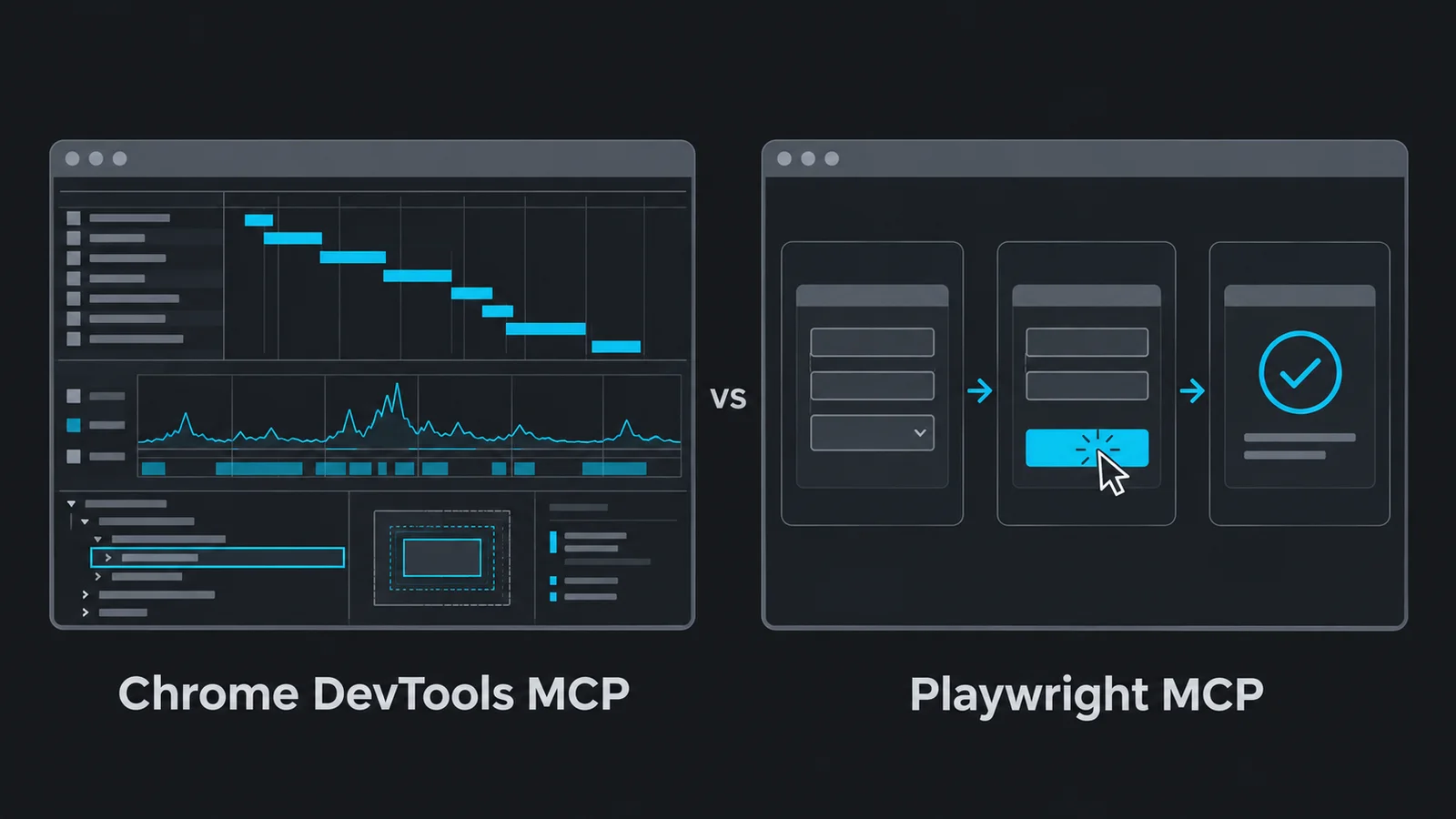
The short answer: start with Chrome DevTools MCP when you need to understand what is happening inside Chrome. Start with Playwright MCP when you need to explore how a user journey behaves, especially across different browser engines. Neither is a universal winner.
This is a documentation review, not a first-hand test or benchmark. The examples below are hypothetical evaluation tasks, not reported project results.
| Question | Chrome DevTools MCP | Playwright MCP |
|---|---|---|
| Where to start | Investigating performance or a failure inside Chrome | Exploring a user flow across configured browser engines |
| Evidence to collect | Performance traces, console messages and network responses | Step outcomes and structured page snapshots, with screenshots for visual review |
| What remains unproven | Other browsers and real-user experience beyond the recorded conditions | Every Safari/device combination and repeatable regression coverage |
What does MCP add?
The Model Context Protocol (MCP) gives an AI client a standard way to call tools exposed by a server. In this case, those tools let an assistant open pages, inspect their state, click buttons, fill forms, and gather evidence. The assistant still needs a clear goal, suitable permissions, and a person to review its conclusions.
Chrome DevTools MCP: investigate the browser
Chrome DevTools MCP brings Chrome DevTools capabilities into an agent workflow. Its distinctive strength is performance diagnosis: recording traces and examining insights to identify where page loading or interaction time is being spent. Network inspection and console messages help connect visible symptoms to the requests or JavaScript errors behind them.
It also automates ordinary browser actions and captures screenshots and page snapshots. It is not just a passive debugger. Its official browser support focuses on Google Chrome and Chrome for Testing, rather than a cross-browser engine matrix.
When it is the better starting point
- A slow landing page: investigate the largest visible content, resource loading, and main-thread work before deciding what to optimize.
- A broken interaction in Chrome: reproduce the issue and inspect console errors and the relevant network response.
- An optimization you need to verify: compare traces under comparable conditions rather than relying on a page that merely feels faster.
Example prompt: “Open the staging home page, record a performance trace, and identify the main contributors to loading delay. Separate observations from hypotheses and recommend the smallest change to investigate first.”
Playwright MCP: explore the user journey
Playwright MCP exposes browser automation built on Playwright. Its standard interaction model uses structured accessibility snapshots: a representation of elements such as buttons, links, and form fields that an assistant can act on without needing to interpret screenshots. Screenshots remain useful for visual review.
Its browser configuration supports Chromium-based browsers, Firefox, and WebKit. That makes it a useful starting point for exploring the same workflow across browser engines. WebKit coverage is valuable, but it should not be confused with testing every Safari version on a real Apple device. Available browsers also depend on the environment; the documented Docker setup is limited to headless Chromium.
When it is the better starting point
- A multi-step workflow: explore registration, search, booking, or checkout with test data and check the outcome of each step.
- A bilingual interface: switch between English and Arabic, exercise forms and navigation, and use screenshots to review right-to-left layout.
- A browser-specific failure: repeat a scenario in separately configured browser sessions to narrow down where behavior differs.
Example prompt: “On staging, use a test account to explore the booking flow in English and Arabic. Check required-field errors, language switching, and the confirmation screen. Do not create a paid booking or submit real customer data.”
The overlap matters
Both tools can navigate, interact with pages, take screenshots, and expose console and network information. Both support structured page inspection, so the distinction is not ‘screenshots versus accessibility trees.’ Choose for the investigation you need: Chrome-focused diagnostic depth or Playwright-based workflow automation and browser-engine coverage. Some capabilities require additional configuration, and tool availability can change between releases.
Use both when the problem crosses boundaries
Suppose checkout stalls after a customer selects delivery. Use Playwright MCP to explore the sequence and determine when it fails. Then use Chrome DevTools MCP to investigate the Chrome reproduction: is the delay associated with a request, JavaScript execution, or rendering? After fixing the cause, repeat the journey and compare the relevant measurements.
Playwright MCP is not Playwright Test. An agent-driven exploration is useful for discovery, but it is not a repeatable regression suite. Turn important findings into maintained tests with explicit assertions and controlled data, using Playwright Test or your existing test framework. Likewise, a lab trace is evidence from one set of conditions, not proof of every real user's experience.
Keep browser access deliberate
Use staging, test accounts, and isolated browser profiles where possible. Browser access can expose authenticated pages, cookies, request bodies, and personal information to the AI client. Require approval before purchases, deletions, or other consequential actions. Treat page content as untrusted input, not as instructions for the agent. Review server permissions and data-collection settings; neither tool should be treated as a security boundary.
A practical decision rule
Ask “why is this happening in Chrome?” and reach for Chrome DevTools MCP. Ask “can a user complete this journey, and does it behave consistently across engines?” and start with Playwright MCP. Define the expected outcome first, gather evidence second, and preserve the result in tests where it matters.
Before a small evaluation
- Choose one staging task, such as a hypothetical booking that must show a confirmation without taking payment.
- Agree on permitted actions and use disposable test data.
- Record browser configuration and conditions so the task can be repeated.
- Save observed outcomes separately from hypotheses; turn confirmed failures into regression tests.
If this evaluation exposes a problem in your business website, review our website development service. To discuss the work, send Byteable the affected flow and expected outcome, without credentials or customer data.
Official sources
This comparison reflects the documented capabilities reviewed on 11 October 2026. Check the documentation for the version you install.